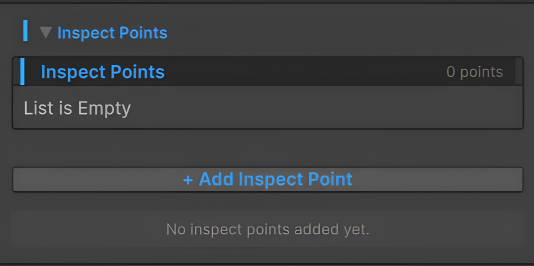
InspectPoint Setup
After Setting up the PointsManager, we can setup up our InspectPoint. (Haven't set up the PointsManager. First setup that → PointManager Setup)
InspectPoint Prefab Setup
You don't have to setup Inspect Point from start.
Just go inside Arc ExamineSystem folder → Prefab folder → InspectPoint folder and inside InspectPoint folder you will find prefab named InspectPoint, just drag that in your examinable object as a child.
Inspect point position or scale could be altered after adding it in examinable object so please set them accordingly.
After that place the Inspect Point wherever you want on the examinable object.
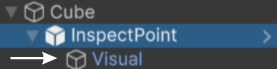
And under Inspect point you will find a object named Visual.
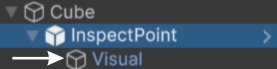
- Visual → This holds the visual of the Inspect point.
Setup
And when you click on Inspect point inside you will find a script named Inspect Point.
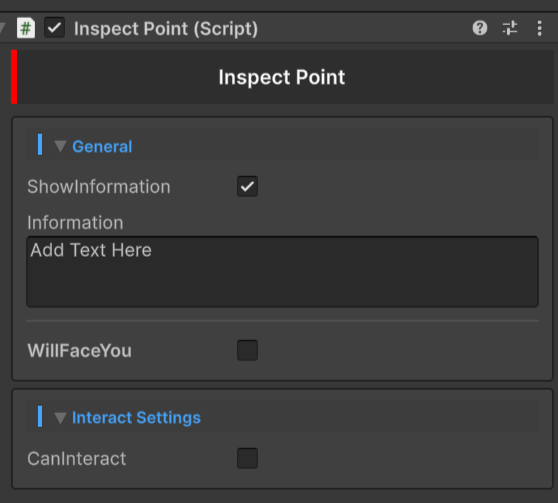
General
-
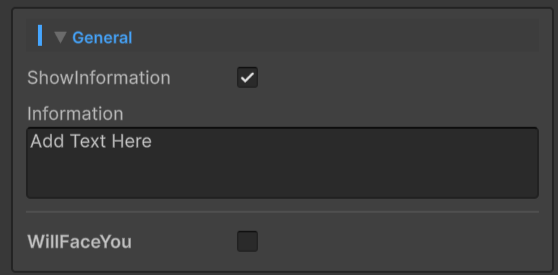
ShowInformation → Enable it, if you want to show Inspect panel when you hover over Inspect point, you can disable it if you only want interaction with Inspect Point.
-
Information → Add the information that you want to show.
Inspect Point Example
- WillFaceYou → Enable it, if you want your Inspect Point Visual to look towards your camera. After enabling you will see this.
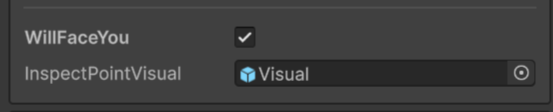
- InspectPointVisual → Here you have to add your Visual that is under Inspect point, adding parent in InspectPointVisual is highly discouraged.
Cursor not visible because it was recorded using unity recorder
Interact Settings
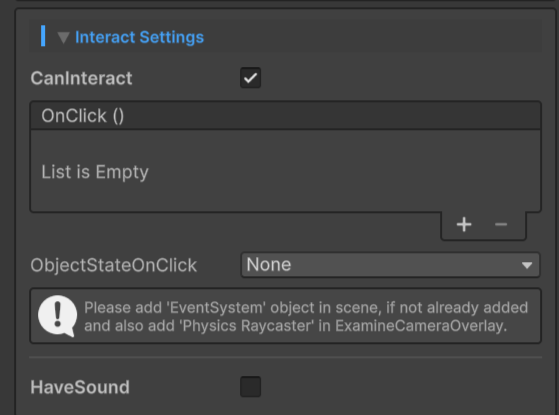
- CanInteract → Enable it, if you want to make the Inspect Point interactable.
- OnClick → Here you can add your custom Event to do customs things and this OnClick event is activated when you click on inspect point, it works similar as UI button.
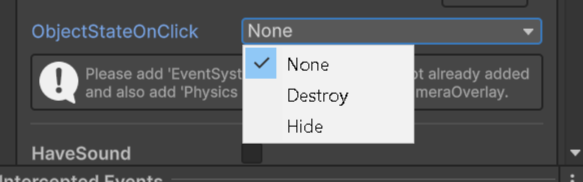
- ObjectStateOnClick → There are three options to choose, gets activated when you click on inspect point.
| Options | Description |
|---|---|
| None | Does nothing. |
| Destroy | Destroys the Inspect point on click. |
| Hide | Hides the Inspect point on click, but gets activated every time you re-enter in examine state. |
Please add EventSystem if not already in scene and Ensure Physics RayCaster is present in ExamineOverlayCamera.
After that you will see one option named HaveSound.

- HaveSound → Enable it, if you want to have sound in this inspect point.

Click on Add InspectSound to add InspectSound script, After clicking it will add a new script in inspect point object.
Inspect Sound is explained here → InspectSound Setup.
Visual Object Under Inspect Point Explained
As you know there is a Visual object under Inspect Point.
This Visual is just a Sprite Renderer component you can customize it however you want.
There is Sphere Collider inside the inspect point you can change the radius to increase the area for interaction.
Make sure this Sphere Collider is not interfering with other colliders.